Seedance 2.0
Seedance 2.0 on Morphic lets you generate video from text, images, video clips, and audio. Combine multiple input types in a single generation for more control over your visuals, motion, and sound.
How to access Seedance 2.0 on Morphic
- Open a new or existing project on Morphic
- Switch the mode to 'Video' in the prompt bar at the bottom
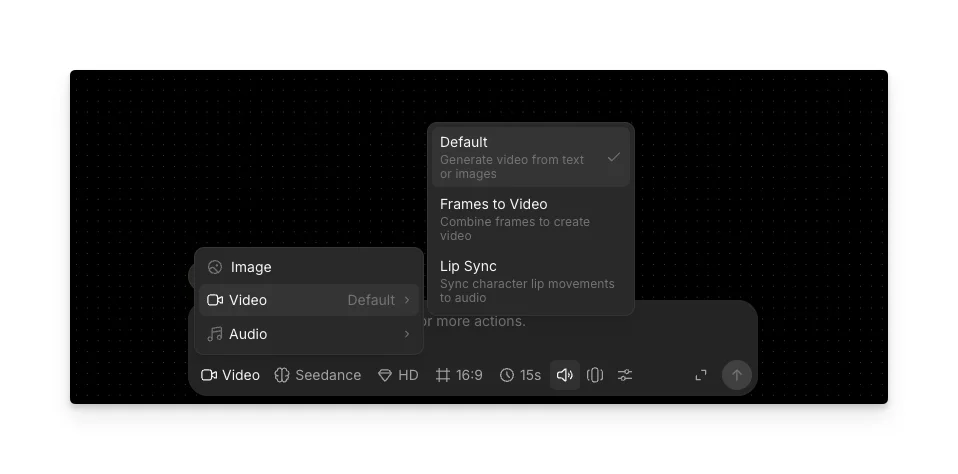
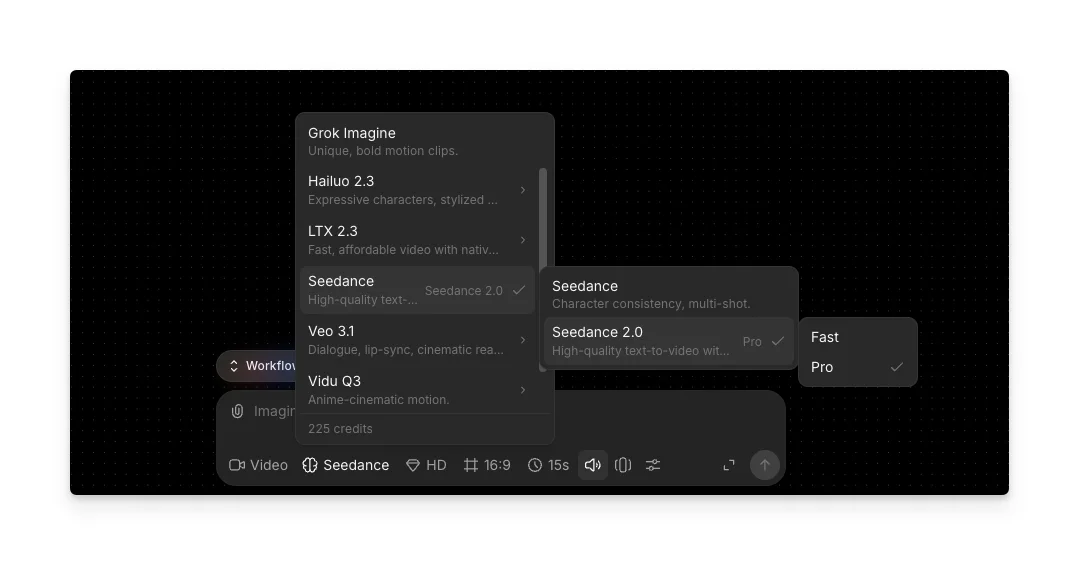
- Click the model selector, hover over 'Seedance', and select 'Seedance 2.0.'
- Write your prompt, add your reference materials, and click the blue button in the prompt bar
You can also access Seedance 2.0 from Video focus mode by clicking on any video on your canvas and selecting it from the Video models dropdown.
Using Omni Reference with Seedance 2.0
Omni Reference is the multimodal input mode in Seedance 2.0. It lets you attach images, video clips, and audio files alongside your text prompt, then tell the model exactly how to use each one with the @ tag. For example, you can set one image as the first frame, pull camera movement from a video, and use an audio clip as the background score, all in a single generation.
| Specification | Details |
|---|---|
| Supported inputs | Text, images, video clips, audio files |
| Max images | 9 |
| Max video clips | 3 (total duration up to 15s) |
| Max audio files | 3 MP3s (total duration up to 15s) |
| Max mixed input files | 12 |
| Output resolution | 480p, 720p |
| Output duration | Up to 15s (4-15s) |
| Audio output | Built-in sound effects and background music |
How to use Omni Reference:
- Open Seedance 2.0 on Morphic using the steps above
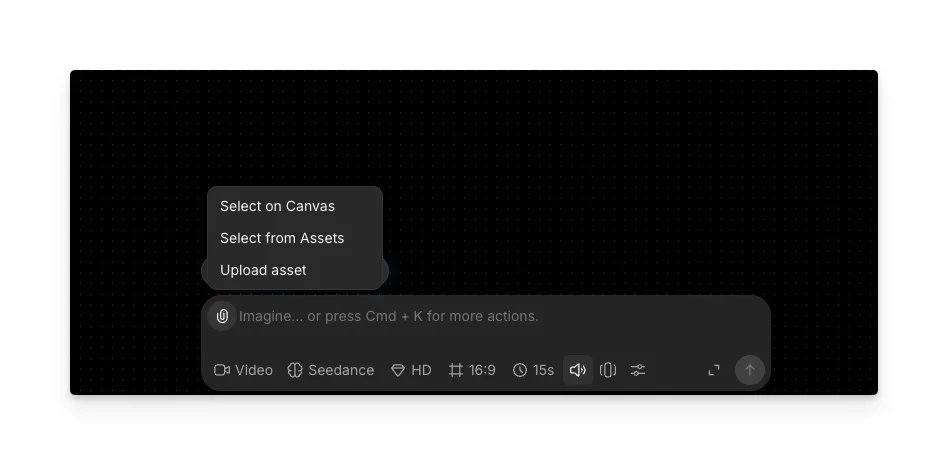
- Click '+ References' in the prompt bar to attach your references. You can:
- Select on Canvas to pick references already placed on your Canvas
- Select from the Assets to pick from your Assets library
- Upload an asset to upload a file from your device
- In your prompt, use '@' to reference each attached file, e.g., @Image 1, @Video 1, @Audio 1
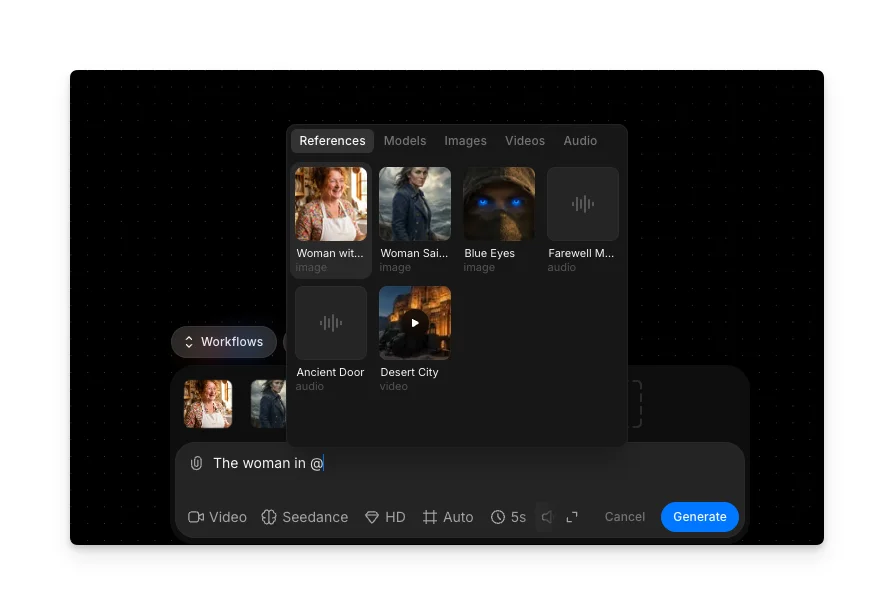
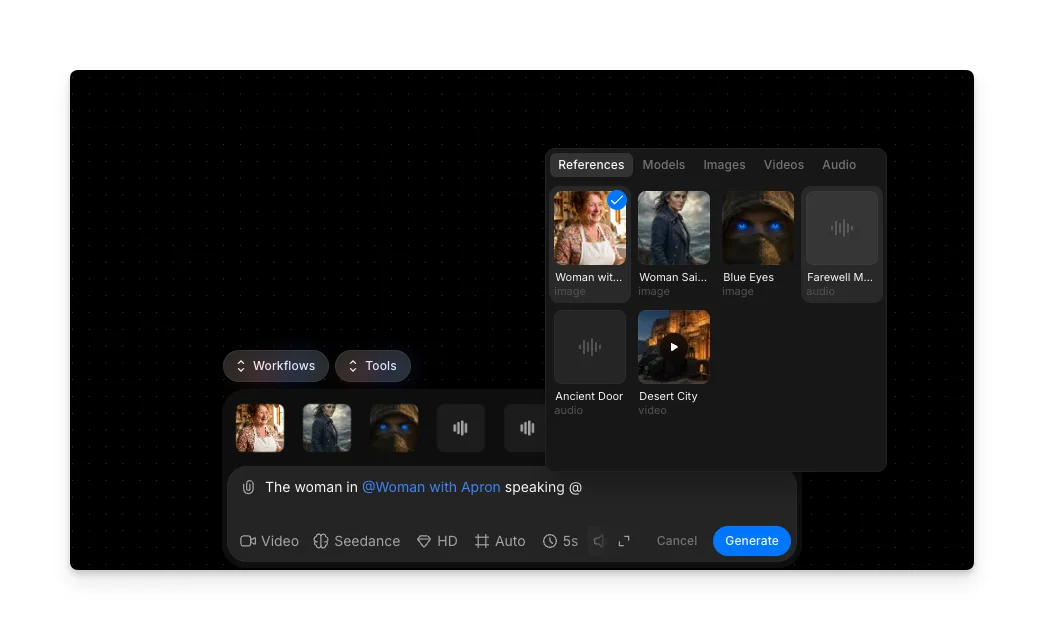
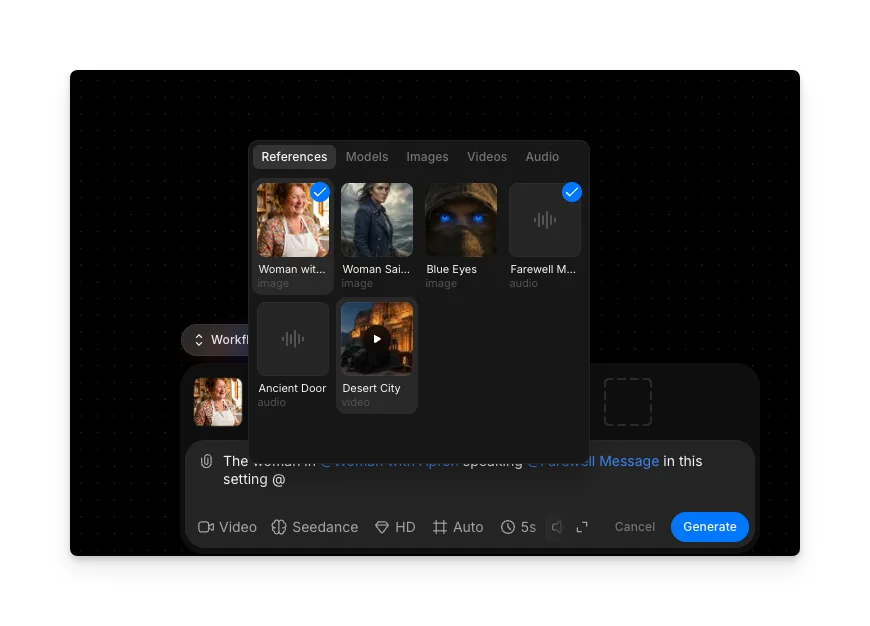
- Describe what each reference is for, e.g., "@Image 1 as the first frame, reference the camera movement in @Video 1, use @Audio 1 as background music"
- Click the blue button in the prompt bar
Tip: Label each @ reference clearly in your prompt so the model does not mix up the role of each file.
Seedance 2.0 human face generation and IP restrictions
Seedance 2.0 on Morphic now supports generating video featuring human characters, including realistic faces, directly from your prompts.
IP and likeness restrictions still apply. Recognizable public figures, celebrity names, trademarked logos, and specific copyrighted styles will not generate.
If you have any trouble or have any questions, feel free to reach out. We're happy to help. Write to us at support@morphic.com.