Krea 3 vs Krea 2: what changed
Krea 3 edits the photo you give it and brings people, products and styles in from up to 3 more images. Krea 2 generates new images and reads its references for style alone, so their subject and layout never carry over.
| Krea 2 | Krea 3 | |
|---|---|---|
| Built for | New images in a chosen look | Editing and combining images |
| Reference images | Style only: palette, texture, light | Subjects, products and style |
| Your photo | Not kept | Kept, with only the asked change |
| Templates and series | Not supported | Reuse a layout, extend a design |
How to write a Krea 3 prompt: name each image by number
Images are numbered in the order you add them, and the prompt points at them by number. Make image 1 the scene or person you are editing, give every other image one job (the red canoe from image 2), say where it sits, and finish with the image whose light to match.
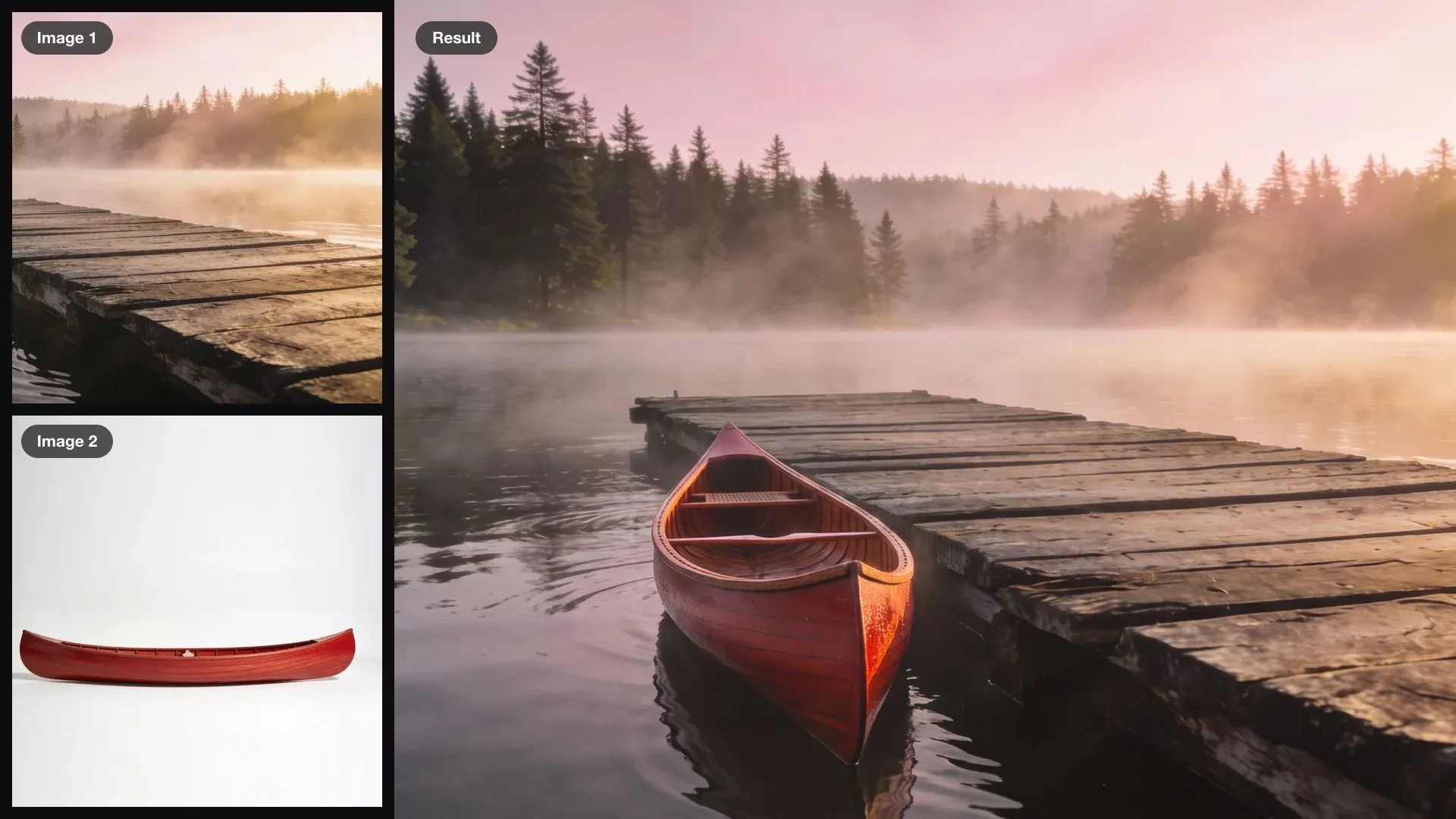
Put the red canoe from image 2 in the water beside the dock in image 1, its bow pointing toward the camera. Match the misty dawn light of image 1.
Combining people from separate photos in Krea 3
Selfies make good inputs: a clear face, the clothes, the hair. Say what the people are doing together, then ask Krea 3 to keep their faces and clothes, so they stay recognizable in the new scene.
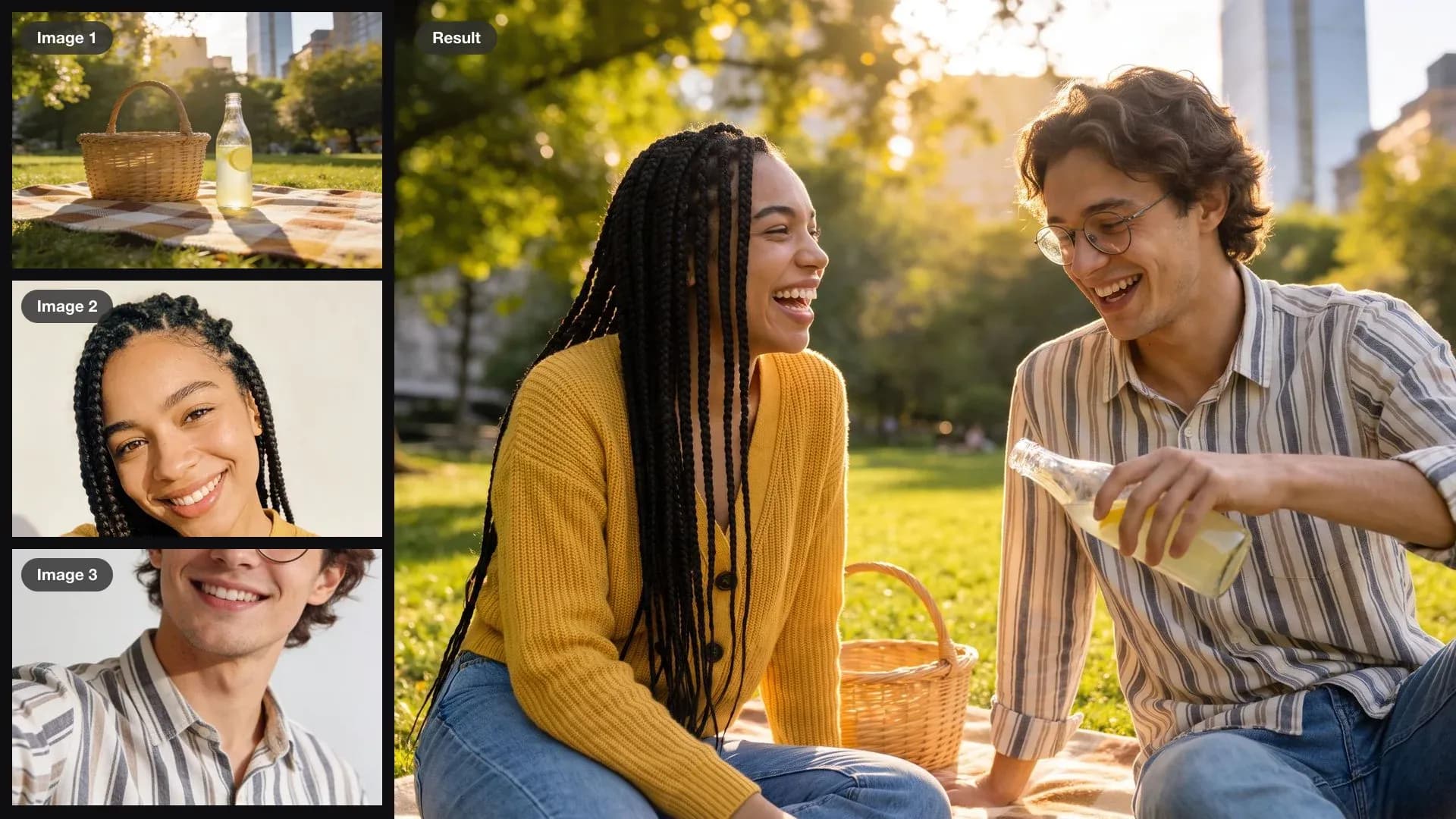
Sit the woman from image 2 and the man from image 3 on the picnic blanket in image 1, sharing the lemonade and laughing. Keep their faces, hair and clothes, and the park and the afternoon light of image 1.
Placing products into a scene with Krea 3
Shoot or generate each product on a plain background, then say exactly where it goes: on the shelf, beside the basin, on the left of the desk. Close with what must not move, so the room stays as shot.
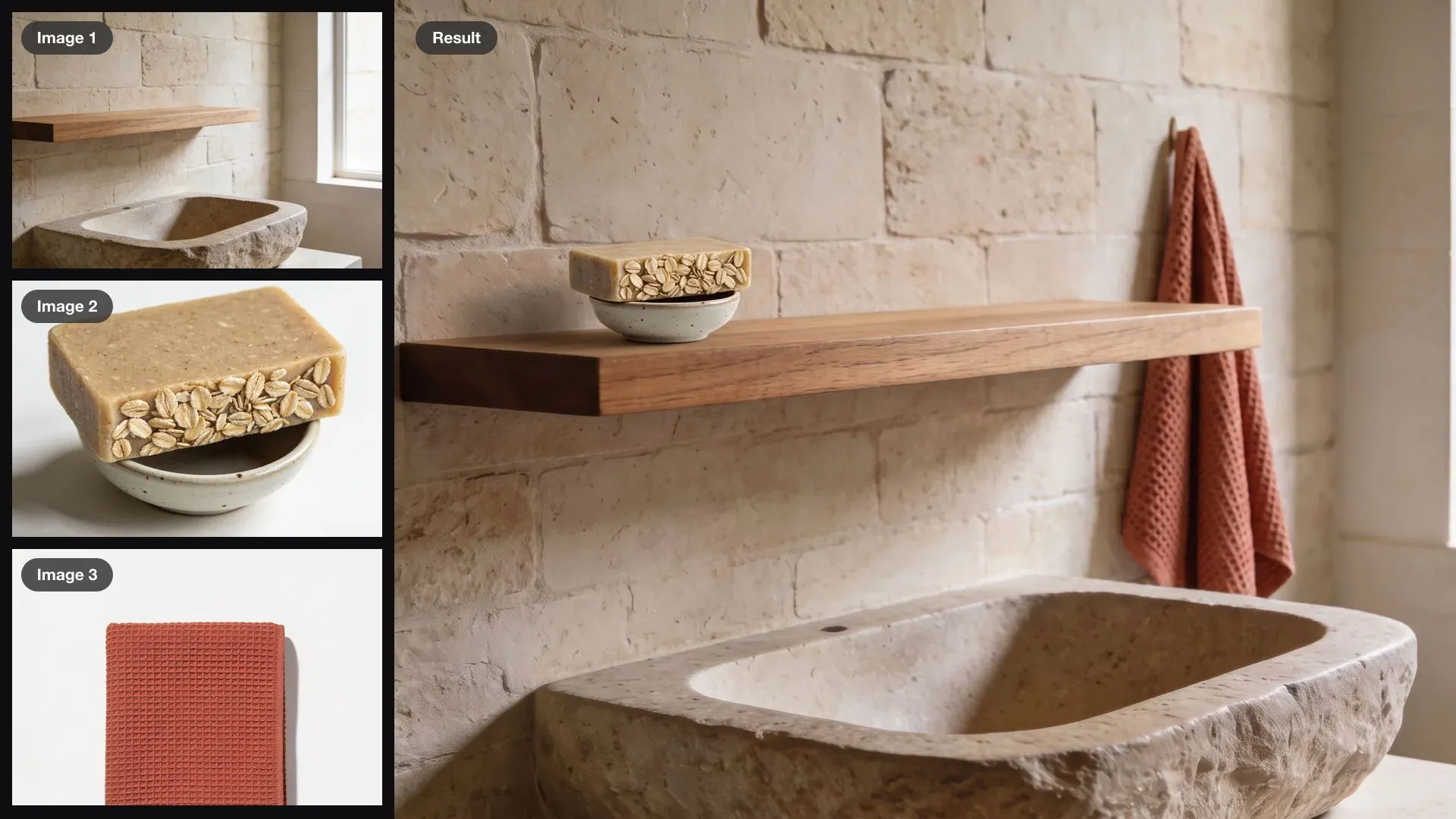
Put the soap dish from image 2 on the shelf in image 1 and hang the towel from image 3 beside the basin. Keep the wall, the basin, the shelf and the daylight exactly the same.
Editing one area with Krea 3 and keeping the rest
Use "change only" and name one object. Then list what stays, the parts nearest the change first, since those are the most likely to drift.
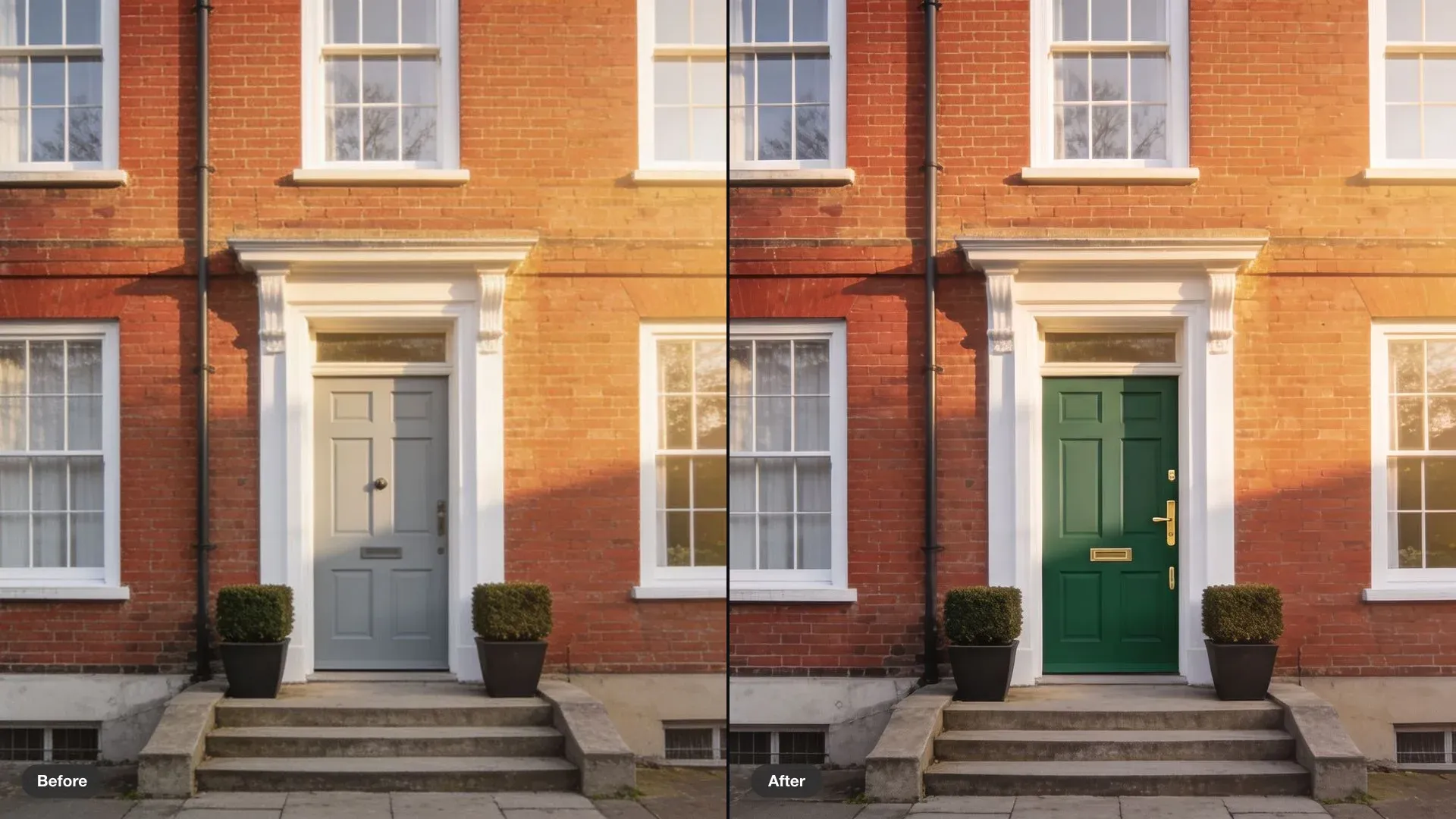
Change only the front door to a deep green with a brass handle. Keep the brick, the windows, the plants, the steps and the light exactly the same.
Reusing a template with Krea 3
Make the finished design image 1 and the new photo image 2. Quote the new headline in capitals, and name every element that should not change, including small lines of text.
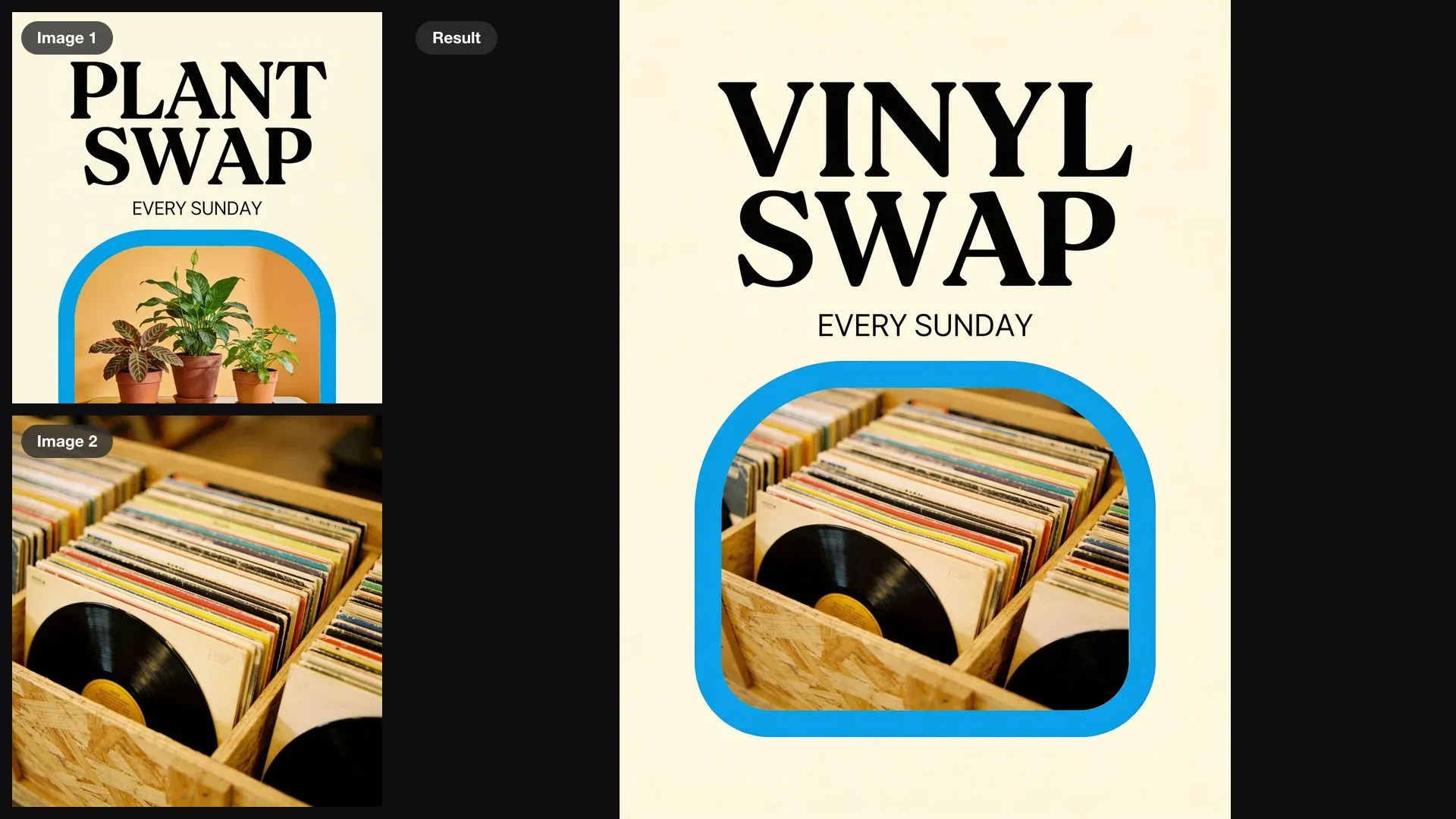
Reuse the poster in image 1 for a record swap: put the records from image 2 in the frame and change the headline to VINYL SWAP. Keep the layout, the fonts, the colours and EVERY SUNDAY exactly the same.
Turning one design into a series with Krea 3
Ask for the editions side by side in one image, so they are judged together. Give each one its own photo by number, and say what every edition shares: masthead, type and layout.
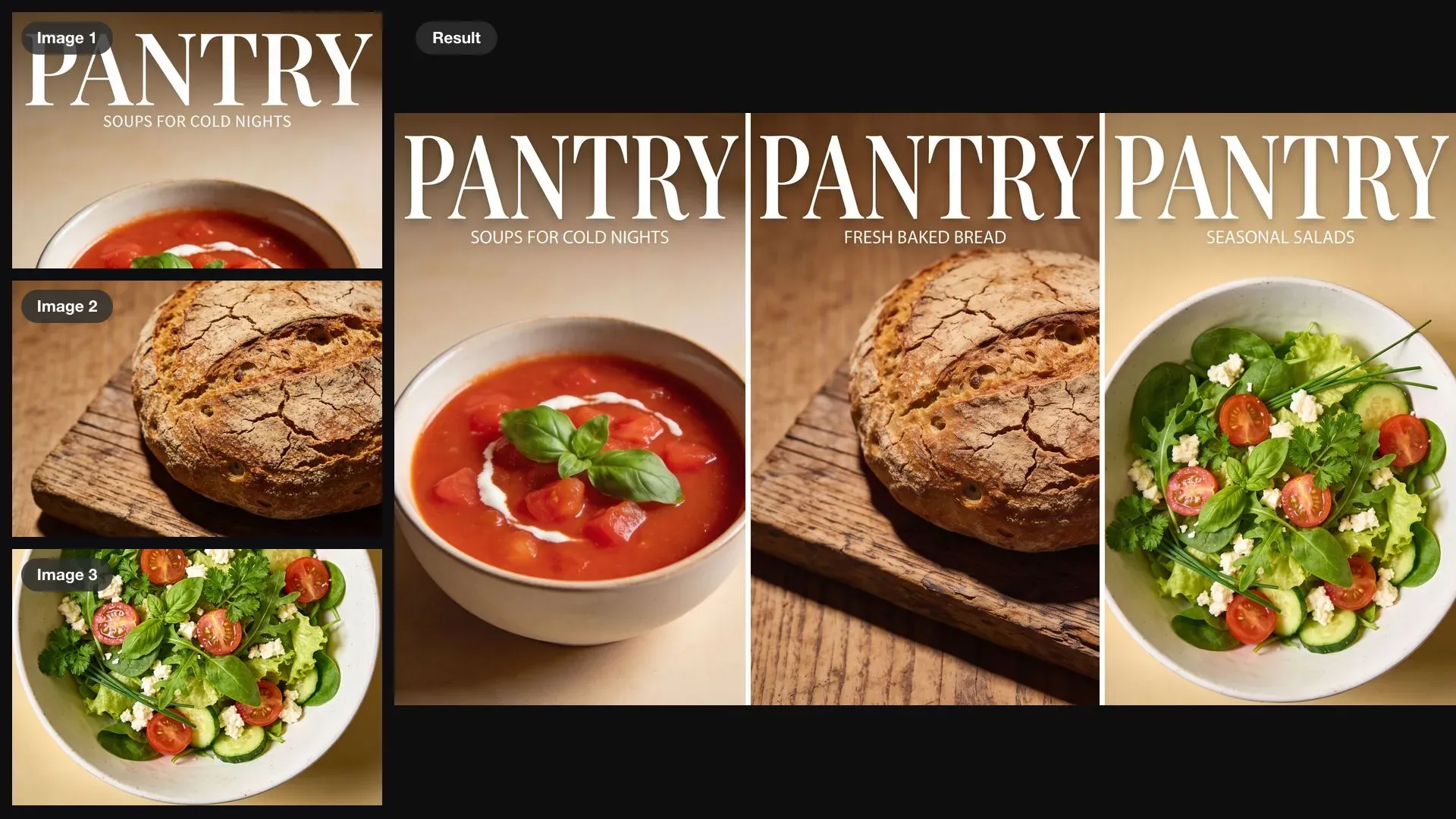
Create two follow-up issues of PANTRY in the template of image 1, one with the bread from image 2 and one with the salad from image 3, and show all three issues side by side. Keep the masthead, the type and the layout, and write a new short cover line for each.
Krea 3 settings and limits
Krea 3 returns one image per run, so try a few versions and compare them.
- Reference images: up to 4 per edit, each with a single job.
- Resolution: native 2K; choose 1080p or 1440p on Morphic, 1440p for print or crops.
- Aspect ratio: auto matches image 1, or set anything from 9:16 to 21:9.
- Prompt only: Krea 3 also generates without references, useful for a quick base image.
- Results per run: one image, so run again and compare.
FAQs
By number, in the order you added them: image 1, image 2, and so on. Make image 1 the photo you are editing and say what each other image brings, for example: the bag from image 2.
Up to 4. Two or three is often enough: the scene plus one or two people or products. Give each image one job so the prompt stays clear.
Use clear, well-lit photos of each face, and add "keep their faces and clothes" to the prompt. Say what the people are doing together so the pose fits the scene.
Write "change only" before the one thing you want changed, then list what must stay, such as the walls, the light and the framing. Short keep lists of named objects work better than "keep everything".
Yes. Put the new words in capitals exactly as they should read, and say which text stays the same. Check small lines of text in the result before you publish.
Krea 2 generates a new image in the look of its references and cannot edit a photo. Krea 3 edits the photo you give it and can combine people, products and styles from up to 3 more images.
Krea 3 is coming to Morphic soon. The examples on this page were made on Morphic with other models: input images with Seedream 4.5, edited with Nano Banana Pro using the exact prompts shown.