Seedance 2.5 features and capabilities
Seedance 2.5 is ByteDance's next-generation video model. It extends the Seedance 2.0 line with longer native takes, many more references, and native audio across 10+ languages, while keeping the AI camera control the line is known for. It also works on footage you already have, editing a clip in place or extending it past its own boundaries.
| Feature | What it does | Best for |
|---|---|---|
| Longer single-take video | Holds one continuous shot far past a few-second beat, up to 30 seconds | Ad spots, short scenes, long reveals |
| Native 1080p output | Renders a full 1920x1080 frame directly, not upscaled, up from 720p at launch | Full-HD delivery for social, web, and ads |
| Reference-led continuity | Takes up to 50 multimodal references to lock a character, set, and palette | Series, multi-shot sequences, brand work |
| Edit an existing clip | Changes one region of a clip you already have, leaving the rest of the frame alone | Fixing a take, targeted revisions |
| Extend an existing clip | Adds footage before or after a clip, or bridges two clips | Clips that came back too short |
| AI camera control | Directs the camera in plain language | Directed shots |
| Audio-only reference | A voice, music, or sound-effect track can drive pacing, beat-matching, and lip-sync | Music videos, lip-synced dialogue, localized voiceover |
The four task types
Seedance 2.5 does not only generate new footage. It also works on a clip you already have, and which of those it does is decided by a task type. On Morphic these sit in the Task Type setting inside Reference to Video.
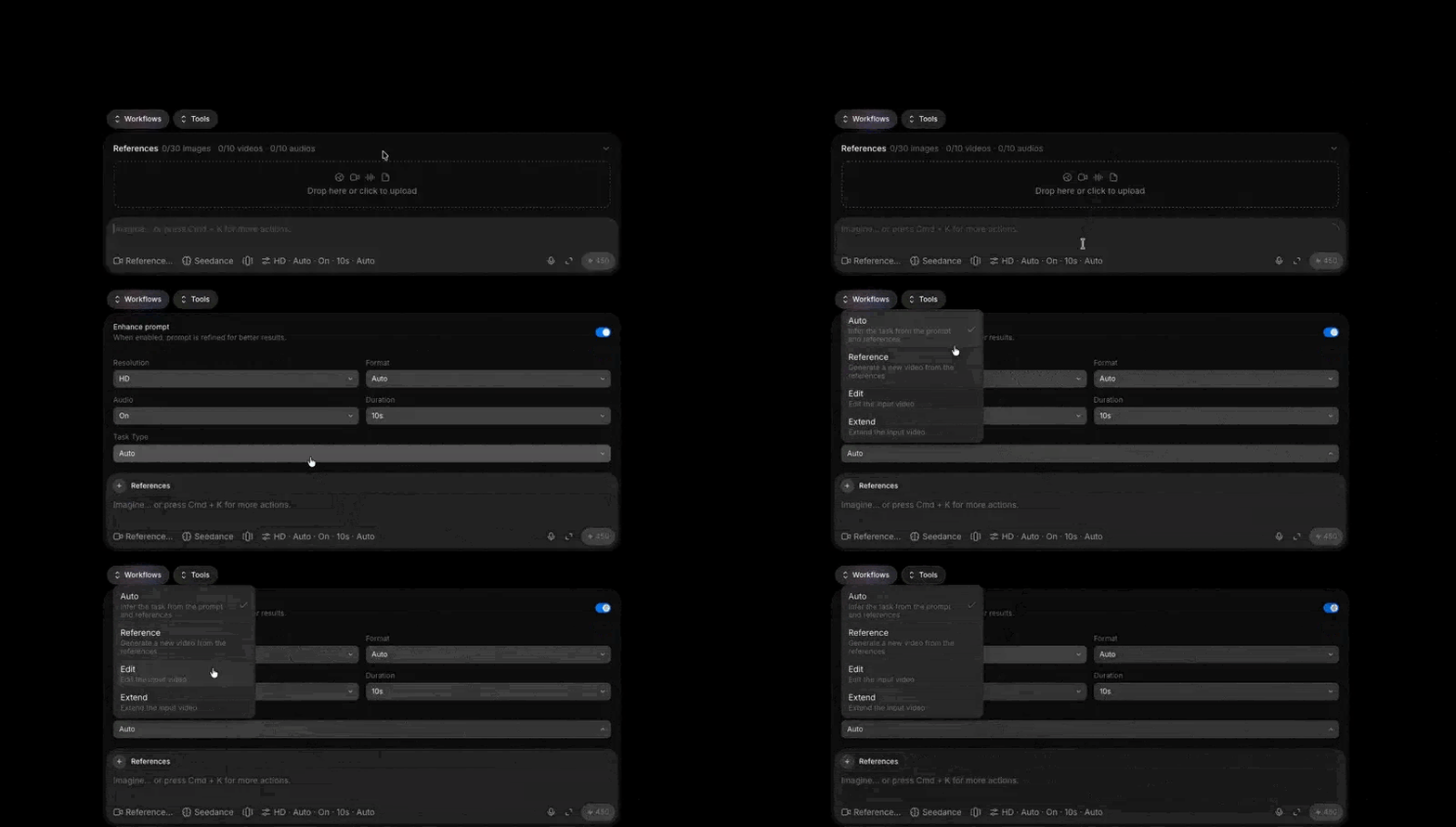
| Task type | What it does | Reach for it when |
|---|---|---|
| Auto | Infers the task from your prompt and references | The intent is unambiguous |
| Reference | Generates a new video from the references | You want a fresh shot built from your inputs |
| Edit | Changes the input video | The shot is right and one element is wrong |
| Extend | Adds footage to the input video | The shot is right and too short |
Seedance 2.5 use cases
Long single-take establishing shots
One unbroken move across a landscape, held far past a few-second beat. A long native take carries a whole reveal without a cut, so an aerial reads as a single continuous camera rather than stitched clips.
Detailed close-up craft
Hands at work, jewelry, and mechanisms hold their fine detail through the move. Reference-led generation keeps the object consistent frame to frame, so a close inspection shot stays crisp instead of smearing.
Sports and athletic motion
Fast bodies and shifting weight stay coherent across the clip, with motion that tracks the action rather than blurring it. A dawn sprint reads with real timing and follow-through.
Cinematic sci-fi scenes
Big sets, atmosphere, and volumetric light give a shot scale. Camera control moves through the space with intent, so a hangar interior feels staged for a scene rather than a static render.
Travel and documentary
Wide vistas and slow reveals finish clean at native 1080p, ready for the feed or a large screen. A desert crossing holds its detail from foreground grain to the far horizon.
Surreal, imaginative concepts
Impossible scenes hold together because the subject stays consistent through the shot. A whale drifting past a diver keeps its scale and weight, so the concept lands instead of falling apart mid-move.
Seedance 2.5 prompt guide
A prompt reads like a short shot brief, not a caption: a subject, a motion, and a camera.
The prompt formula
Five elements, in this order. Drop any you do not need.
| Element | What it covers | Required |
|---|---|---|
| Subject and action | Who or what is in frame, and what they do | Yes |
| Scene and environment | Location, time, weather, background | Optional |
| Visual style | Lighting, color, materials, texture, mood | Optional |
| Camera movement or cuts | Shot size, angle, movement, transitions | Optional |
| Audio | Dialogue, voice, ambience, sound effects, music | Optional |
[Subject] performs [primary action] in [scene and environment].
The visuals feature [visual style].
Use [shot size, camera angle, camera movement, or cuts].
Audio includes [dialogue, ambience, sound effects, or music].
Aspect ratio and duration stay out of the prompt. You set those on the generation page.
Naming references
Uploading an image is half the instruction. Say what it contributes and what to ignore.
@Image 1 defines the artist's face, hair, and dark green apron.
Do not use the image background.
- One reference, one subject. "@Images 1 through 4 define four characters" never says which is which.
- Add the exclusions. Backgrounds and bystanders ride along unless ruled out.
- Group multiples. Four angles of a lamp need "all four define one lamp", or you get four.
- Do not restate a video reference. If it already carries the motion, name only what to inherit.
| Reference type | Keep subjects to | Limits |
|---|---|---|
| Images | 8 or fewer | Past 5, prefer single views over collages |
| Video | 5 or fewer | 5-10s each, 30s total |
| Audio | 5 or fewer | 30s total |
| Source clip for an edit | Under 20s | Pair with 1-5 reference images |
Priority order: core characters, key props, scene, then style.
Writing a 30-second shot
Split the story into consecutive stages. One main change each, plus what is visible when it ends. The end state carries continuity forward.
[Stage 1]
Primary event: <Florist> arranges the stems and trims them to length.
End state: <Florist> holds the bouquet, scissors back on the workbench.

[Stage 2]
Primary event: <Store Assistant> wraps the bouquet and ties it.
End state: the wrapped bouquet lies flat, bow facing camera.

Keep identities, clothing, and prop ownership consistent throughout.
Reach for timestamps only when a beat has to land at a set moment.
| Pattern | Use it for | Example |
|---|---|---|
| Time range | Budgeting pacing | 0-3 seconds... 3-7 seconds... |
| Exact time point | One critical beat | At 5 seconds, the camera whip-pans left |
| Relative timing | A delay between events | Three seconds after the button, the lights go out |
Ranges are budgets, not edit points. Three actions in one second does not work.
Audio and dialogue syntax
Four bracket types name the kind of sound or text you mean, which stops dialogue being drawn on screen as a caption.
| Content | Bracket | Example |
|---|---|---|
| Music | ( ) | (Soft, rhythmic piano music plays) |
| Sound effect | < > | <A bell rings in the distance> |
| Dialogue | { } | {Hello, welcome back.} |
| Subtitle | 【 】 | 【Chapter One: Departure】 |
Name the language before any line that is not in Chinese. "Authentic Los Angeles English" gets a specific delivery where plain "English" gets a neutral read.
Editing and extending a Seedance 2.5 clip
Once a take is close, work on it rather than re-rolling it. Pin the Task Type to Edit or Extend first: Auto reads the prompt to decide, and a loosely phrased edit comes back as a brand new clip. Pinning also fails a bad setup at submission rather than after the generation runs.
Editing a clip
| Operation | What it does | Example |
|---|---|---|
| Instruction edit | Adds, removes, or changes content, optionally at a timestamp | Replace the scene from 0:02 to 0:05 |
| Reference-image edit | Swaps an element to match a supplied image | Replace the jacket with the reference |
| Add or remove a subject | Drops in or erases a person, prop, logo, or effect | Remove the drone, inpaint the sky |
| Audio edit | Replaces music, adds effects, or changes the voice | Swap the background music |
Name the source as the sole master, scope the change, and list what must not move.
Edit @Video 1. Only from 4-7 seconds, change the blue light on the right
wall to warm orange. @Video 1 is the sole editing master.
Keep identity, clothing, motion, camera movement, and ambience.
Swapping a subject adds the block people forget: the replacement inherits the original's timeline, every appearance, movement, and exit, at the same timing and speed. Without it you get the right frame and the wrong rhythm.
Extending a clip
An extension continues past the last frame, generates the moment before the first, or bridges two clips. Describe the boundary frame before the new action.
Extend @Video 1 forward. The first frame continues directly from the last
frame of @Video 1: same locked-off shot, the airplane's position and
heading, the classroom window, the afternoon light.
Then the airplane glides right and exits frame.
Backward extensions need one guard: say which materials belong only to the original, or props that should arrive later turn up early.
What each one locks
| Task | Aspect ratio | Duration |
|---|---|---|
| Edit | Inherited, cannot be set | Inherited, cannot be set, within about 0.4 seconds |
| Extend | Inherited, cannot be set | Can be set |
| First or first-and-last frame | Inherited from the first image | Can be set |
Advanced Seedance 2.5 direction
Handing over structure instead of describing it
- First and last frames. Name each anchor separately. A combined "these two are the first and last frames" binds neither.
- Multi-keyframe sequences. "Use @Image 1 through @Image N as keyframes in this order", then each image's key state. Separate images beat a collaged grid.
- Storyboard grids. Shot order and rough composition only. Under ~15 panels, and rule out the grid's own style so the line art stays out of the render.
- 3D blockouts. Carries timing: paths, blocking, camera movement, cut points. Map each grey shape to its subject by name, and strip path lines and axes first.
- Performance cues. Name what a viewer would see, eye movement, brow tension, breathing, gaze, hands. Two to four cues carry one emotional turn.
- Camera terms. Standard vocabulary works as written. For a term the model may not know, keep it and add the visible change.
Pre-flight checklist
Most weak prompts fail the same five ways.
| Check | Weak | Strong |
|---|---|---|
| Motion over time | A climber on a ridge | A climber hauls over the ridge, stands, and turns to the valley as the camera pulls back |
| A named camera move | A city skyline at dusk | Low aerial over a skyline at dusk, one unbroken push toward a single lit tower |
| Reference roles | Use these references | @Image 1 defines the detective's coat and face. Do not use its background |
| Stages, on a long shot | One paragraph of events | One main change per stage, each with a visible end state |
| Task type, on an existing clip | Left on Auto | Pinned to Edit or Extend, with a matching instruction verb |
What Seedance 2.5 will not do precisely
- Timestamps allocate time to events. They are not frame-accurate edit points.
- An edit cannot guarantee frame-by-frame overlap with the source.
- A seamless transition aims at continuity, not pixel-identical preservation.
- Text that must be exact, subtitles, signage, specs, is a post-production job.
