Upscaling models
One workspaceBefore and after the upscale
The left side is the original file at full size. The right side is the same file rebuilt. Drag the handle across an edge or a patch of texture, because that is where the difference shows first.
 Upscaled
 Original
Files worth rescuing
Rebuild a file in three steps
- 01
Open Morphic
Sign up and start creating on a free-flowing, infinite visual canvas.
- 02
Upload the file
Bring in the best copy you have, whether that is a photo, a scan, or a clip.
- 03
Upscale and compare
Run it, then send it through a second model and keep whichever holds faces and type better.
Use cases
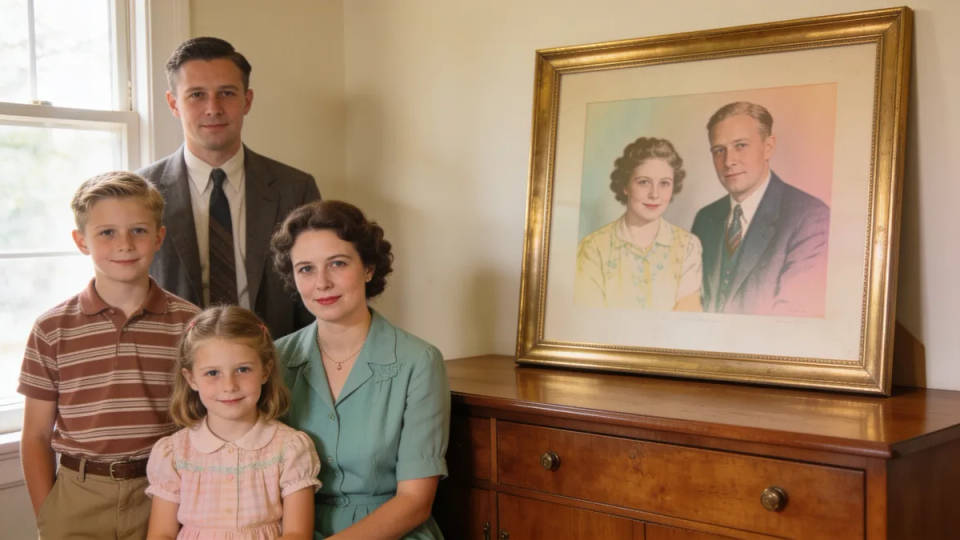
Old photographs at printable size
Family pictures and archive scans were captured at whatever resolution the era allowed. Rebuilding the detail makes them large enough to frame rather than only to view.
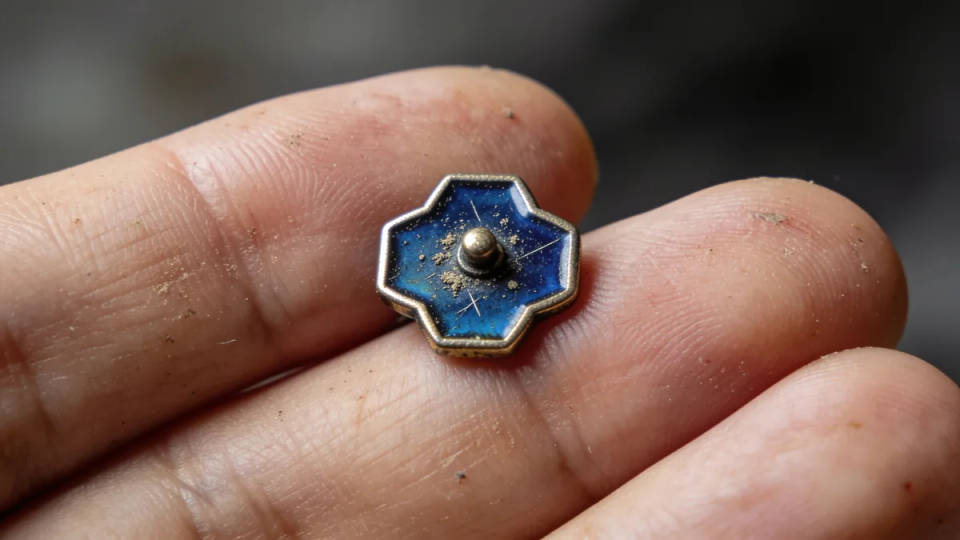
Small assets that have to go big
A logo that only survives as a small PNG, or a product shot that has to fill a billboard. Reconstruct the edges instead of accepting a soft enlargement.
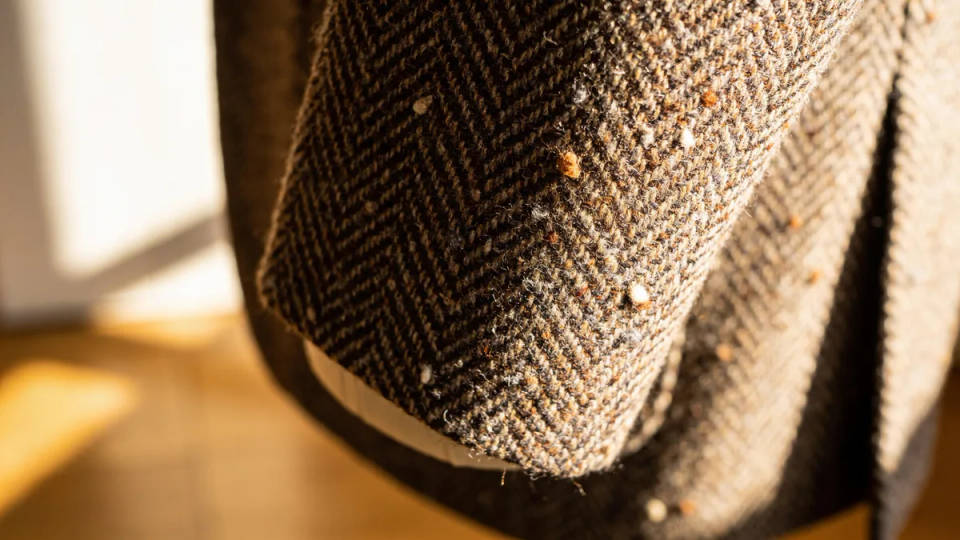
Footage from older cameras
Bring an older clip into a modern timeline without it sitting soft next to everything around it. Every frame is rebuilt, and the result stays steady across them.

Recovering compressed files
Pictures that came back from a messaging app or a screenshot pipeline arrive with the detail already thrown away. Upscaling puts back enough of it to be usable.

Messages to cinematic scene
Dramatize any text conversation into a cinematic multi-shot video.

Title sequence
Generate a professional film title card from scratch, with optional cinematic animation.

Cinematic storyboard
Share a scene description with character references. Get a full storyboard with shot angles and mood.

3x3 storyboard
Feed in a single image. Get 9 cinematic beats laid out as a 3x3 storyboard grid.

Chibi sprite animation
Turn any photo or description into an animated chibi sprite. Dance, jump, wave, attack, and more.
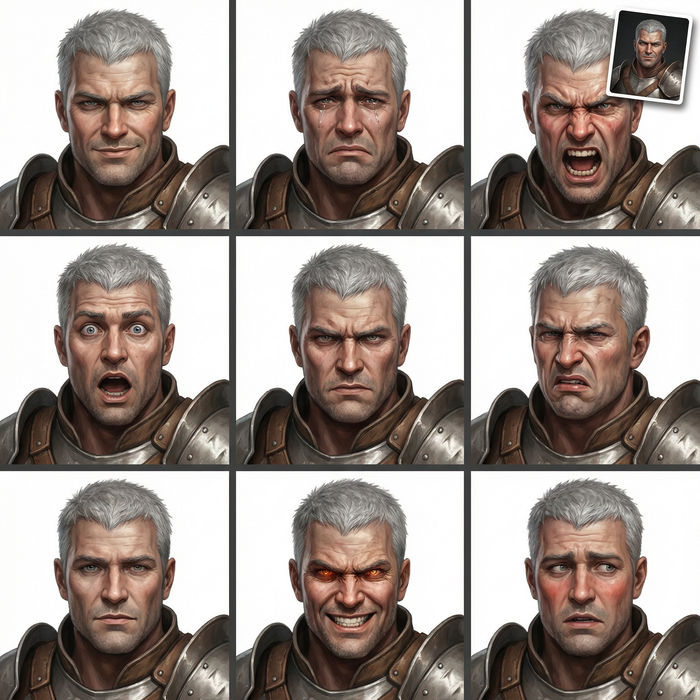
Expressions
Take any character image and generate 6 distinct facial expressions on a single reference sheet.
All on Morphic
From soft source to full resolutionModels
Topaz and Crystal for reconstruction, Seedream and Flux for generative detail. Faces and small type are where the differences between them show up.
Video upscaling
Whole clips rebuilt frame by frame, with the detail held steady across them so nothing shimmers in motion.
Repair before you enlarge
Damaged or faded originals do better if they are restored first, then upscaled. Fix the file, then make it big.
Workflows
Save the treatment and run a whole archive through it. The set comes out uniform instead of file by file.
