Gemini Omni Flash 1.1 features and capabilities
Google DeepMind's multimodal video model, updated in August 2026. It makes 3 to 10 second clips with native audio, then keeps working on them: a follow-up prompt edits the same take, and extensions grow it to 40 seconds.
| Feature | What it does | Best for |
|---|---|---|
| Conversational editing | A follow-up prompt changes the take; anything unmentioned stays put | Fixing a shot without re-rolling |
| Video extension | Continues a clip 10s at a time, to 40s total | Scenes longer than one generation |
| Reference input | 10 images and 3 clips steer one generation, each tagged to a role | Recurring characters, products, styles |
| First and last frame | Interpolates between two stills; the same still twice loops | Transitions, loops, storyboard pairs |
| Native audio | Lip-synced speech, effects, ambience, and music with the picture | Talking scenes, sound-led shots |
| Resolution ladder | 360p to 4K; 1080p and 4K are upscales | Cheap drafts, full-size delivery |
| On-screen text | Renders the English text you specify, down to background signs | Titles, lower thirds, captions |
Gemini Omni Flash 1.1 use cases
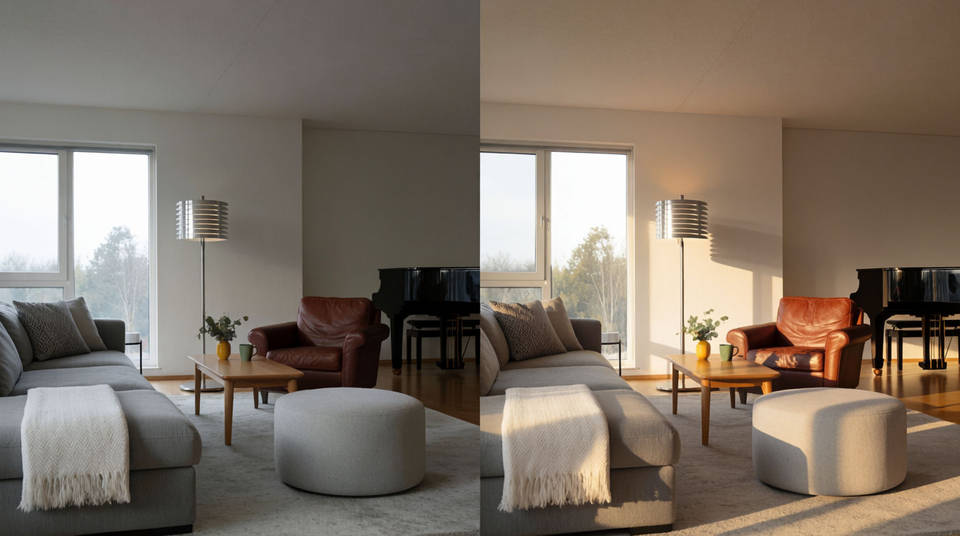
Edit chains on one take
Relight the room, swap the jacket, rewrite the sign. Each instruction lands on the same shot while the rest of the frame holds.
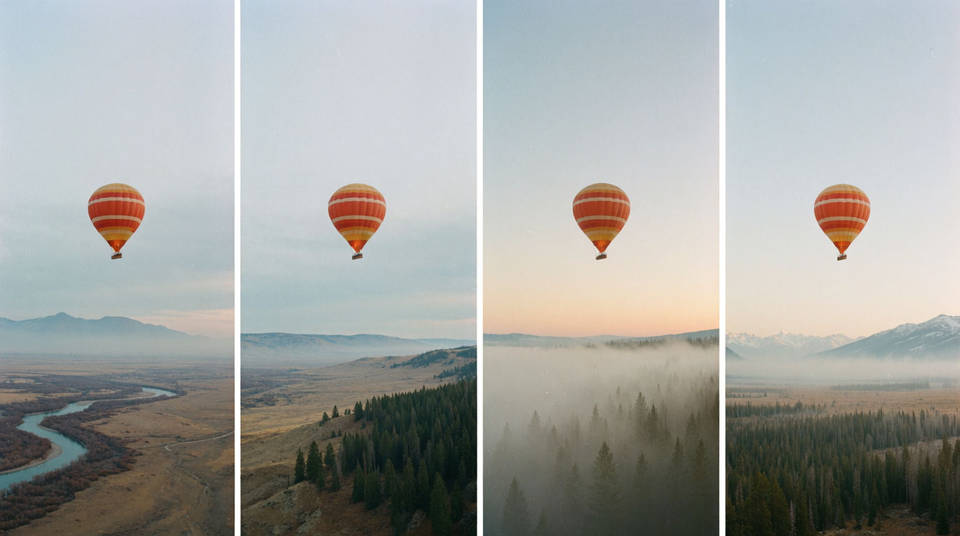
Scenes built by extension
Open on a ten-second beat, then grow it. The model reads your final seconds and continues the motion, cast, and score to 40 seconds.
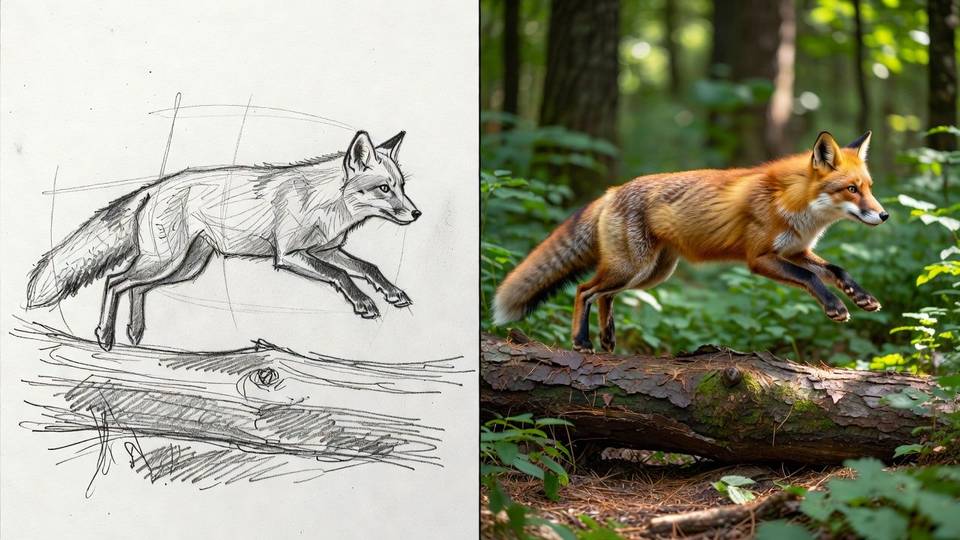
Sketch to footage
Say to use the drawing as a guide only. The model borrows the silhouette and path, then rebuilds texture, light, and depth.
Talking spokespeople
Write the line and the character delivers it lip-synced, in a voice that stays theirs through every later edit.
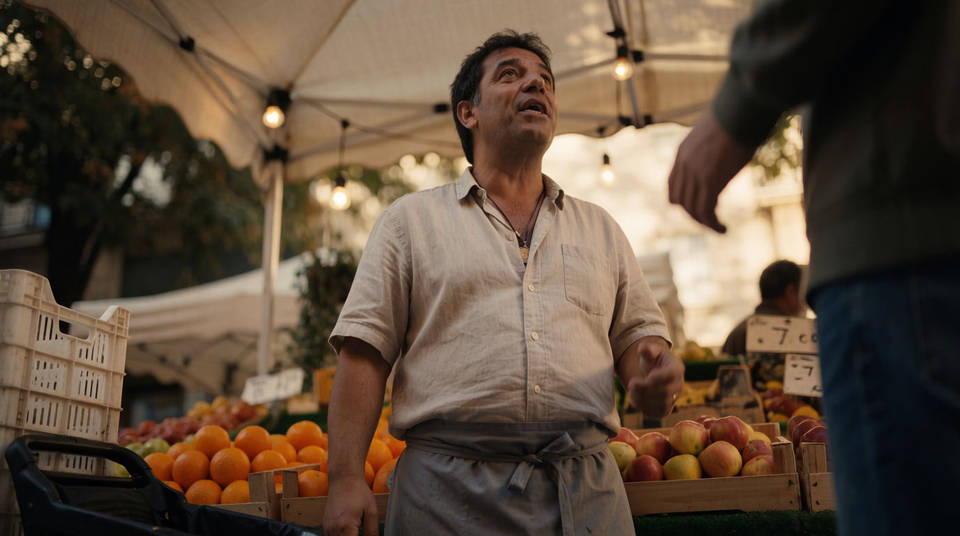
Timed sequences
A timecode block turns one prompt into a cut-by-cut sequence: rapid-fire product frames, or a beat every two seconds.
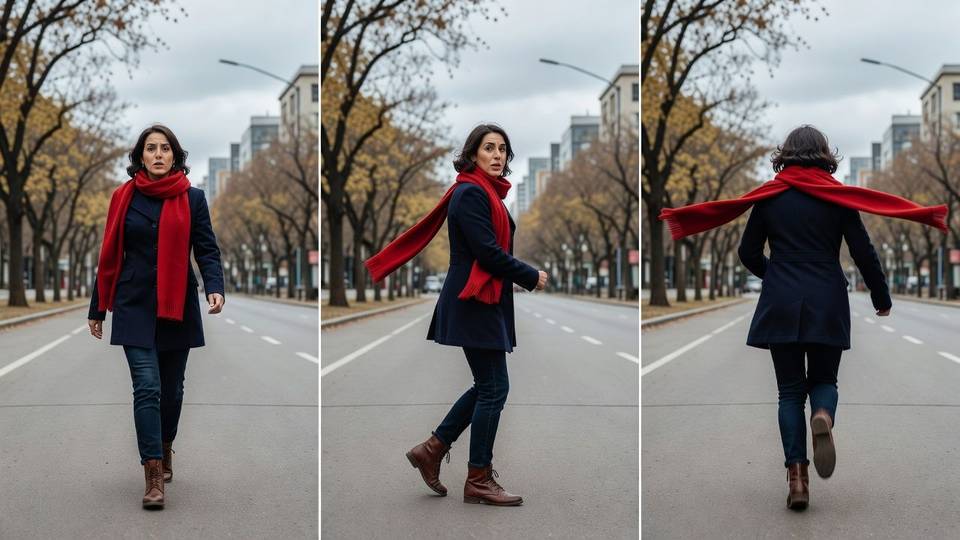
Perfect loops
Pass the same image as first and last frame and the clip returns to where it began, ready to run on a product page.
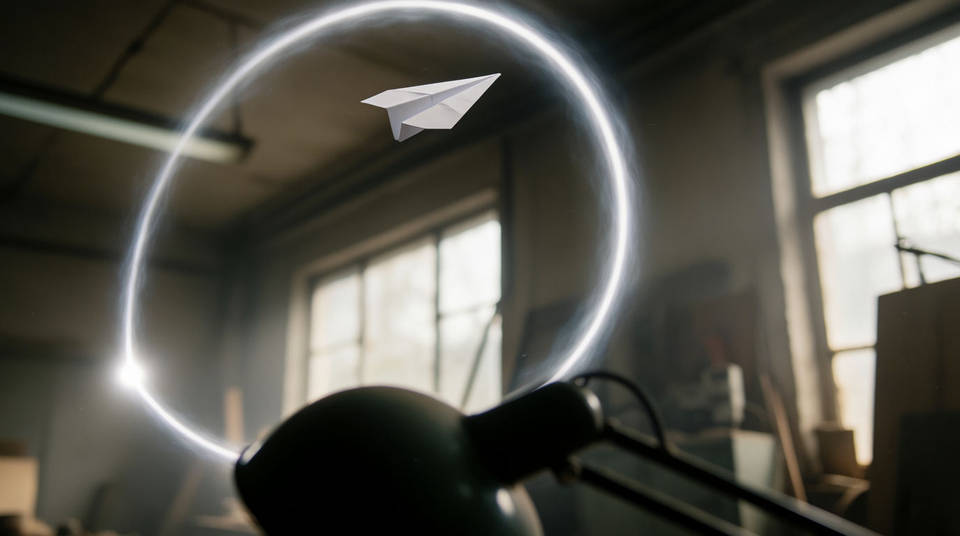
Step 1: pick the task
Everything the model does maps to one of five tasks. Name it when intent could be misread; otherwise it is inferred from your prompt and media.
| Task | What it does | Reach for it when |
|---|---|---|
| Text to video | Generates a clip from a written brief | Starting from nothing |
| Image to video | Animates a still, or interpolates two frames | You have the frame, you want the motion |
| Reference to video | Builds a shot from tagged images and clips | A character or style must carry over |
| Edit | Changes an existing video | The take is right, one element is wrong |
| Extend | Appends a continuation | The take is right and too short |
Step 2: write the prompt
A prompt is a short shot brief, in this order. Aspect ratio, resolution, and duration are settings, not prompt text.
| Element | What it covers | Required |
|---|---|---|
| Subject and action | Who is in frame, and what they do | Yes |
| Scene | Location, time of day, weather, background | Optional |
| Camera and light | Shot size, movement, lens, light source | Optional |
| Audio | Dialogue, ambience, effects, music, or silence | Strongly recommended |
| Shot structure | One continuous shot, or cuts and their timing | Optional |
Continuous, unbroken handheld shot of a fluffy tabby cat on a sunny windowsill,
looking out into a leafy garden. Its tail twitches slowly; its ears rotate toward
ambient noises. Sound design: gentle breeze, distant bird chirps. No dialogue.
The five prompt levers
| Lever | Write this | Why it matters |
|---|---|---|
| Shot structure | Single continuous shot, no scene cuts. Or: every 2s cut to a new location | Unprompted, the model tells a story across several shots |
| Audio | No music, just room tone. Or a spoken line: she says, third one today | Silence must be asked for, or you get invented music |
| Timing | After 3 seconds, a woman enters. Or a timecode block | Ranges are budgets, not frame-accurate edit points |
| On-screen text | A street sign that says MARKET LANE | Undefined text gets invented. English renders, other scripts do not |
| Triggers | When the person touches the mirror, it ripples like liquid | Event-driven instructions land more precisely than abstract timing |
[0-3s] A person is walking
[3-6s] They stop and turn around
[6-10s] They start running
Negatives go in the prompt itself, such as no dialogue or do not add captions. There is no negative-prompt field.
Step 3: add references and frames
Ten reference images and three reference videos per generation. Tags assign each file its role, numbered from zero in upload order.
| Tag | Role | Example |
|---|---|---|
| FIRST_FRAME | Starting frame | <FIRST_FRAME> a woman is walking |
| LAST_FRAME | Final frame, paired with a first frame | <FIRST_FRAME> <LAST_FRAME> a woman is walking |
| IMAGE_REF_0 | Reference: subject, product, or style | in the style of <IMAGE_REF_0>, a woman is walking |
| VIDEO_REF_0 | Character or object reference | the person in <VIDEO_REF_0> is playing the violin |
- Attach everything up front. A reference added mid-conversation destabilizes a scene that was holding.
- Give each reference one job. Style from the first image, subject from the second, beats leaving it to guess.
- Keep video references short. Three seconds each, likenesses work best, their audio is ignored.
- Same image as first and last frame returns a seamless loop.
Step 4: edit and extend the result
A generated take stays live in the conversation, and uploaded footage of 10 seconds or less can join it. Everything you describe is something the model may re-render, so describe only the change.
| Avoid | Write instead |
|---|---|
| In the video of the man on the sofa, add a small black cat that runs in from the right, jumps onto his lap, and he strokes its head | Add a cat that jumps onto his lap, he begins to pet it. Keep everything else the same. |
| Make the whole scene feel more dramatic and cinematic with moodier colors and stronger shadows | Change the lighting to be more dramatic. Keep everything else the same. |
| Rule | Detail |
|---|---|
| One change per turn | Compound instructions break consistency about twice as often |
| Four edits per chain | Past that, drift creeps in. Re-anchor with: keep all character details exactly as they are, only change X |
| Extension appends only | 10s at a time to 40s total. It cannot prepend or stretch the middle |
| Extension clock restarts | After 2s means two seconds into the new footage |
| References can ride along | A new character enters the extended scene from an image you attach |
Extend this video. The scene continues: she sets the cup down, and the camera
pulls back through the window into the rain. The music fades to street noise.
Gemini Omni Flash 1.1 limits
| Limit | What happens | Work around it |
|---|---|---|
| Non-Latin text | Japanese and Chinese glyphs render as convincing inventions | Keep on-screen text in English, or check every frame |
| Crowded scenes | Four or more tracked subjects merge or drift | Hold it to three |
| No voice editing | No audio reference uploads, no voice surgery | Direct the voice in text; consistency keeps it |
| Policy edges | Real brands and recognizable people are blocked, by region | Keep branded elements generic |
